History Ordinals and Points
The relationship between Emerson ROC field devices and CygNet history data groups is defined by the use of RAM areas, segments, points, and ordinals. To some extent, this is also true of FMS data groups because they depend on native history data groups for their data.
Because the process of configuring a CygNet data group to "talk" to a field device begins at the field device, the following information first provides details about field device history points, then native history data groups, and finally EFM data groups.
For more information, see the following subsections below:
- Field Device RAM Areas, Segments, and Points
- Native History Data Group Ordinals, RAM Areas, Segments, and Points
- To Find History Points
- FMS History Data Group Ordinals, Segments, and Points
- To Add Point Numbers
In order for your Emerson ROC EIE to collect historical information for a given field device, that device must be properly configured. See the appropriate manufacturer-provided documentation.
Field Device RAM Areas, Segments, and Points
Emerson ROC devices rely on a combination of RAM areas and points within RAM areas to identify history point numbers. Emerson ROC points contain standard and extended history parameters, as well as index information where applicable.
The following list breaks down RAM areas, segments, and points by model:
- FloBoss 100-Series (except the 107), ROC300-Series, FloBoss 400-Series, and FloBoss 500-Series field devices all use RAM areas (0-2) combined with points within RAM (0-29) to access history.
- The FloBoss 107 field device uses standard history points (1-100) and extended history points (1-5) to access history.
Native History Data Group Ordinals, RAM Areas, Segments, and Points
Note: The following section relates to the native history data groups "Periodic History," "Extended History," and "History — Sixty Minute Point."
Ordinals
Each CygNet data group added to a remote device is identified by a number called an ordinal. The ordinal is specified on the Data Group Properties dialog box. For native history data groups, the ordinal derives from an associated history point on a field device. Sometimes this is a one-to-one relationship, as with the FloBoss 107 device.
RAM Areas, Segments, and Points
Note: Field device units must match the supported units of the history points they map to.
Emerson ROC devices rely on a combination of RAM areas and points within those RAM areas to identify history point numbers. Emerson ROC points contain standard and extended history parameters, as well as index information where applicable.
The following list breaks down RAM areas, segments, and points by model:
- Periodic history data groups on FloBoss 100-Series (except the 107), ROC300-Series, FloBoss 400-Series, and FloBoss 500-Series remote devices require you to specify a RAM area (0-2) and point within RAM (0-29). Using RAM area and point within RAM, they automatically generate an ordinal.
- Periodic history data groups on a FloBoss 107 remote device use a specified history point number (1-100) or a specified extended history point number (1-5) as their ordinal.
For an Emerson ROC EIE, poll the "History Point List" data group. History points appear in the Hist Pt# column. Segments do not apply to Emerson ROC devices; a RAM area is used instead.

FMS History Data Group Ordinals, Segments, and Points
Ordinals
FMS history data groups also use ordinals. However, these ordinals are associated with a meter, not a history point. When you specify a Meter# in an FMS history Data Group Properties dialog box, that number displays in the Ordinal column under the Data Group page.
Segments and Points
Note: Field device history point units must match the supported FMS history data group units.
For all Emerson ROC models, the "FMS History" data groups must be manually configured with History Point numbers. The following procedure explains how to add point numbers to an Emerson ROC remote device that uses FMS.
Note: Poll the "ROC Config" data group before starting this procedure.
- Open CygNet Explorer.
- Click Device Definition Service (DDS) in your service hierarchy.
- Locate the remote device you want to alter and double-click it to open its remote device editor.
- Click the Data Group page.
- If you have not done so already, add, configure, and poll a "History Point List" data group.
- Add, configure, and poll an FMS configuration data group for the meter from which you want to collect history.
- Add and configure an FMS history data group. Make sure that the history data group's Meter # is the same as the FMS configuration data group added in step 6. See step 8 below for details.
- In the FMS history data group from step 7, assign history points to process variables. Exactly what each number represents depends on your field device set up. FMS history data groups require no predefined history points.
- Locate the process variable for which you want to assign a history point, and click in the corresponding History Point field to display a Browse button.
- Click the Browse button to open the Browse History Points dialog box.
- Select the correct history point from the list of available items.
|
Data Group Properties |
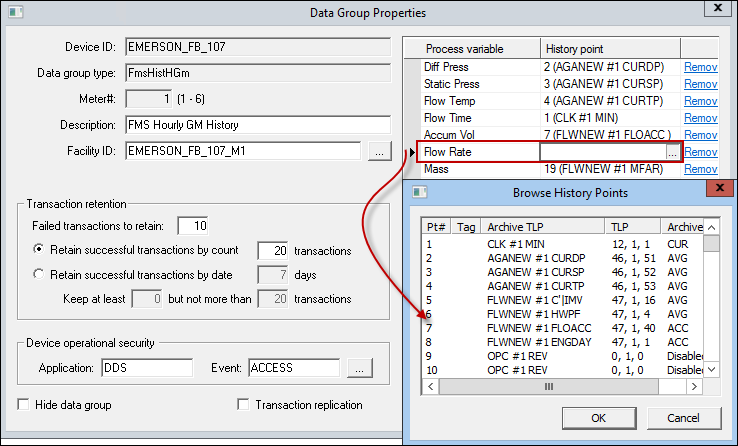
- When you are done assigning history points to process variables, click OK.
- Click Apply to save the FMS history data group configuration.
- You may now poll the FMS history data group from step 7.

